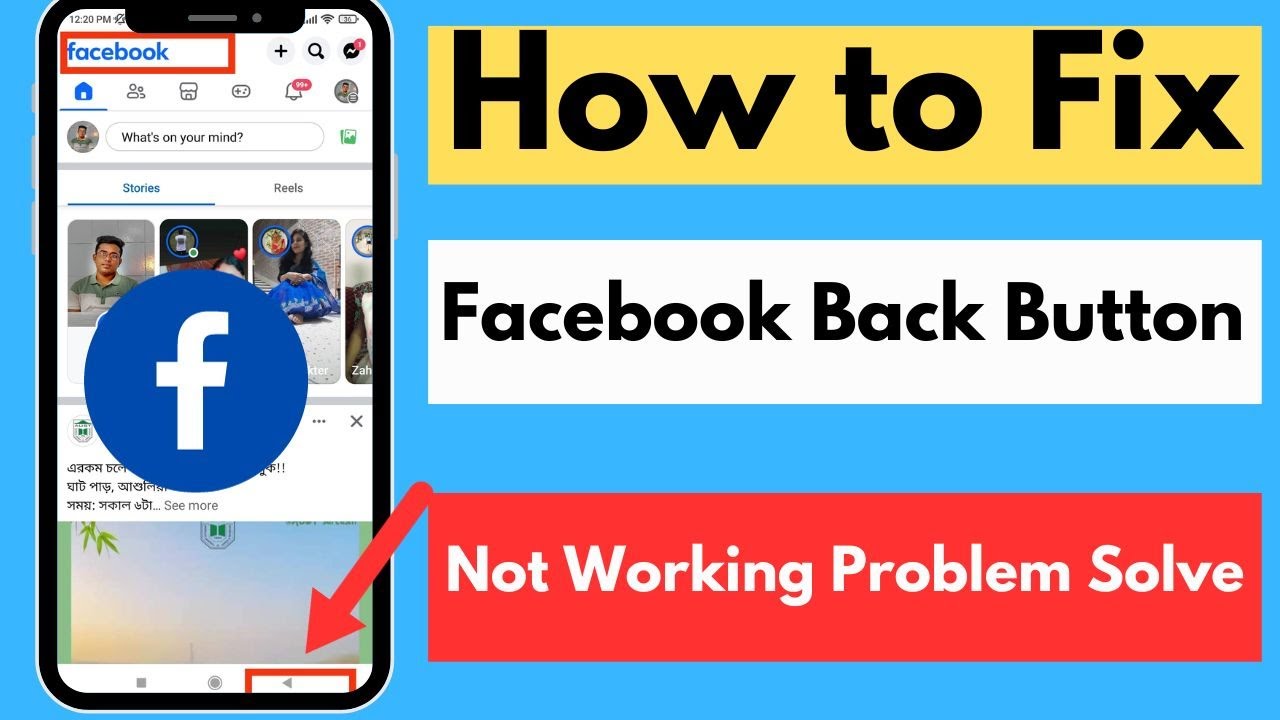
You tap the back button on Facebook and nothing happens. Or it closes the whole app instead of going back one screen. Or it sends you to some random feed instead of where you just were. It’s infuriating — and it happens more than Facebook would ever admit. The good news: this is almost always fixable in under two minutes. You don’t need to reinstall anything, reset your phone, or contact support. Work through these fixes in order and you’ll be back to scrolling normally.
⚡ Quick Answer
Force-close the Facebook app and reopen it — this clears the navigation stack that causes the back button to misbehave. If that doesn’t work, clear Facebook’s cache in your phone settings. On a browser, press Alt + Left Arrow (Windows) or Cmd + [ (Mac) as a backup while you troubleshoot.
Step-by-Step Fixes for the Facebook Back Button
Fix 1: Force-Close and Reopen Facebook
This solves the problem roughly 60% of the time. A stuck navigation history inside the app breaks the back button’s logic.
On Android:
- Swipe up from the bottom of your screen to open recent apps.
- Find the Facebook card and swipe it away.
- Reopen Facebook from your home screen.
On iPhone:
- Swipe up from the bottom edge and pause to see recent apps.
- Swipe the Facebook preview card upward to close it.
- Tap Facebook to reopen it.
On Desktop (Browser):
- Close the Facebook tab completely.
- Open a new tab and navigate to facebook.com.
- Log in if prompted and test the back button.
Fix 2: Clear Facebook’s Cache
A bloated cache causes the app to lose track of your navigation history. Clearing it does not log you out.
On Android:
- Open your phone’s Settings.
- Tap Apps (or Application Manager on older phones).
- Scroll down and tap Facebook.
- Tap Storage, then tap Clear Cache.
- Reopen Facebook and test.
On iPhone:
- Go to Settings → scroll down to Facebook.
- Toggle off then on again — this resets in-app storage.
- Alternatively, offload the app: Settings → General → iPhone Storage → Facebook → Offload App.
On Desktop:
- In Chrome, press Ctrl + Shift + Delete (Windows) or Cmd + Shift + Delete (Mac).
- Set the time range to Last 7 days.
- Check Cached images and files, then click Clear data.
- Reload Facebook.
Fix 3: Update the Facebook App
Running an outdated version is a known cause of broken navigation. Facebook pushes navigation fixes in minor updates that don’t always install automatically.
On Android: Open Play Store → tap your profile icon → Manage apps & device → find Facebook → tap Update.
On iPhone: Open App Store → tap your profile icon → scroll to find Facebook → tap Update if available.
Why This Happens
Facebook uses an internal navigation system called a navigation stack — essentially a list of screens you’ve visited. When that stack gets corrupted (from a bad network drop, a mid-load app switch, or a bug in the latest update), the back button has nowhere valid to go. This is separate from your phone’s back button — Facebook controls its own in-app navigation independently. Meta updates this system frequently, which means new bugs appear with new versions, and old ones get fixed without any announcement.
What If This Doesn’t Work?
If all three fixes above fail, try these escalation steps:
- Reinstall Facebook. Delete the app, redownload from your app store, and log back in. This is the nuclear option but clears every corrupted file.
- Use Facebook Lite (Android only). This stripped-down version has simpler navigation and fewer bugs. Search Facebook Lite in the Play Store.
- Switch to a mobile browser. Open Chrome or Safari and go to m.facebook.com. The browser’s native back button works independently of Facebook’s app logic.
- Check if it’s a system issue. On Android, go to Settings → Accessibility → confirm your navigation gestures haven’t changed. A phone update sometimes resets these.
Pro Tips
- Long-press the back button on Android. This shows your recent navigation history as a list — you can jump to any previous screen, even when the regular back tap fails.
- The Facebook in-app browser is a separate trap. When you tap a link inside Facebook, it opens in Facebook’s own browser — and that browser has its own broken back behavior. Tap the three dots at the top right and select Open in Chrome (or Safari) to escape it.
- Restarting your phone clears navigation memory. If force-closing the app didn’t work, a full phone restart resets the system-level memory that Facebook’s navigation depends on.
- Disable battery optimization for Facebook (Android). Go to Settings → Battery → Battery Optimization → find Facebook → set to Don’t Optimize. Aggressive battery saving kills background processes that help Facebook track your navigation correctly.
- Report it to Meta directly. Inside the app, tap the three-line menu → Help & Support → Report a Problem. It won’t fix it instantly, but patterns in reports push Meta to prioritize the bug fix.
FAQs
Why does the Facebook back button take me to the home feed instead of the last screen? This happens because Facebook’s navigation stack reset — usually after a network interruption mid-scroll. The app loses the record of where you were and defaults to the home feed. Force-closing and reopening the app resets the stack cleanly.
Does clearing the cache delete my Facebook data or log me out? No. Clearing the cache only removes temporary files stored on your device. Your posts, messages, photos, and login session stay completely intact.
Why does this only happen on Facebook and not other apps? Facebook builds its own custom navigation system instead of using your phone’s default one. That extra layer means more points of failure. Apps that use standard Android or iOS navigation break far less often.
The back button works sometimes but not always — why? Intermittent failures usually point to a specific type of content triggering the bug — often Reels, Stories, or Marketplace listings. These sections load inside separate mini-browsers within the app. Update Facebook to get the latest patches for these specific sections.
Will reinstalling Facebook fix the problem permanently? A reinstall fixes it immediately, but the same bug can return with the next app update if Meta hasn’t patched the root cause. Keep automatic updates on so you get fixes as soon as they ship.
Closing
A broken back button on Facebook is annoying but never permanent. Start with a force-close, move to clearing the cache, and update the app — most people are fixed after the first or second step. If you’re still stuck, Facebook Lite or your mobile browser will get you through until Meta patches the underlying bug. You’ve got this.