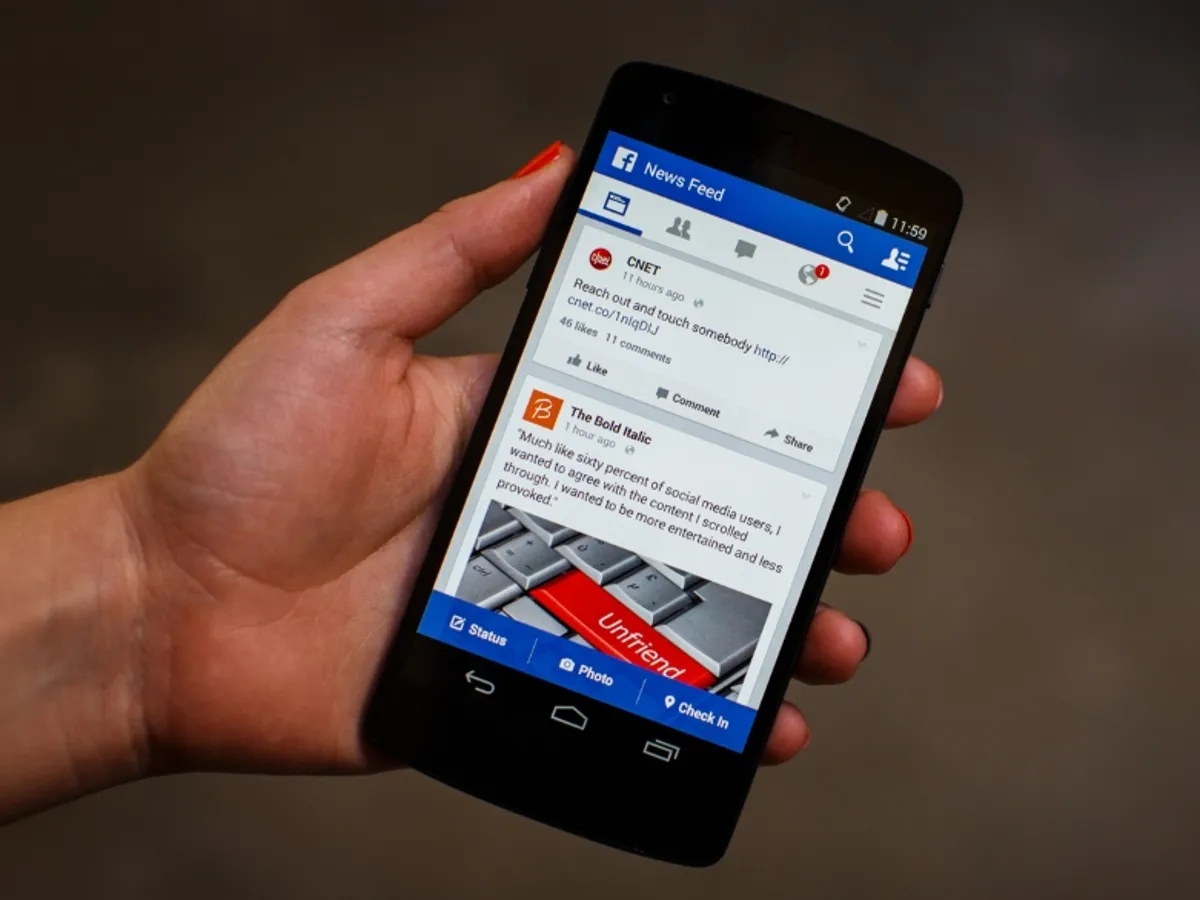
You tap the Facebook app. It opens for half a second — then dies. You try again. Same result. Maybe it freezes mid-scroll, or the screen goes black the moment you hit Notifications. Whatever flavor of broken you’re dealing with, one thing is clear: Facebook crashing on Android wastes your time and nobody has a straight answer. This guide does. You’ll know exactly what to try, in what order, and what to do when the obvious fixes fail.
✅ Quick Answer
Clear Facebook’s cache first — this fixes the crash in most cases. Go to Settings → Apps → Facebook → Storage → Clear Cache, then relaunch the app. If it still crashes, force-stop the app, restart your phone, and try again. Still broken? Keep reading.
Why Facebook Keeps Crashing on Android
Facebook crashing on Android is almost never random. This happens because the app’s cached data gets corrupted, the app version is outdated, or your Android OS and Facebook are out of sync. Sometimes a background process gets stuck and the app can’t recover on its own.
Low storage space is another major trigger. Facebook needs breathing room to load feeds, videos, and ads — if your phone is nearly full, the app panics and shuts down. A bad update from Meta can also break things for millions of users simultaneously, with no warning.
How to Fix Facebook Crashing on Android: Step-by-Step
Step 1: Clear Facebook’s Cache
This is the fix that works most often. Cached data builds up over time and goes stale.
- Open Settings on your Android phone.
- Tap Apps (some phones show App Manager or Applications).
- Scroll down and tap Facebook.
- Tap Storage & Cache or Storage.
- Tap Clear Cache — do NOT tap Clear Data yet.
- Relaunch Facebook.
Note: “Clear Cache” is safe. It won’t delete your account, messages, or saved posts. It just wipes temporary files.
Step 2: Force-Stop and Restart the App
Sometimes Facebook gets stuck running in the background. Closing it fully resets the process.
- Go to Settings → Apps → Facebook.
- Tap Force Stop.
- Confirm when prompted.
- Swipe Facebook out of your recent apps.
- Restart your phone, then reopen Facebook.
Step 3: Update Facebook
Running an old version of Facebook on a phone with newer Android software causes crashes. Meta pushes updates to patch exactly these conflicts.
- Open the Google Play Store.
- Tap your profile icon in the top right.
- Tap Manage apps & device.
- Find Facebook and tap Update if one is available.
- Relaunch after the update finishes.
Step 4: Free Up Storage Space
Facebook needs at least 500MB of free space to run reliably. If your phone is near capacity, the app will crash without warning.
- Go to Settings → Storage.
- Check how much free space you have.
- Delete unused apps, clear other app caches, or move photos to Google Photos.
- Aim for at least 1GB free before relaunching Facebook.
Step 5: Reinstall Facebook
If nothing above works, a corrupted install is likely the problem. Reinstalling wipes it clean.
- Press and hold the Facebook app icon.
- Tap Uninstall and confirm.
- Open the Google Play Store and search Facebook.
- Tap Install and wait for it to finish.
- Log back in with your email and password.
What If This Doesn’t Work?
If Facebook still crashes after every step above, the problem may be outside your control.
Check if Facebook is down. Go to downdetector.com and search Facebook. If thousands of users are reporting the same issue at the same time, a server-side outage is causing your crash — and you just have to wait.
Try Facebook Lite instead. Facebook Lite is a stripped-down version of the app built for low-memory phones and unstable connections. It crashes far less often. Search Facebook Lite in the Google Play Store and install it as an alternative.
Use Facebook in your browser. Open Chrome and go to facebook.com. The mobile web version works without the app and doesn’t crash. This is a reliable backup while you troubleshoot.
Check for Android OS updates. Go to Settings → System → Software Update. An outdated Android version can conflict with the latest Facebook build.
Pro Tips
- Don’t use “Clear Data” unless you’re reinstalling anyway. Clear Data wipes your local settings and logs you out — it’s more nuclear than necessary in most cases.
- Turn off battery optimization for Facebook. Go to Settings → Apps → Facebook → Battery → Unrestricted. Aggressive battery optimization kills background processes and causes crashes on launch.
- Disable VPNs temporarily. A VPN routing your traffic through a slow or blocked server will cause Facebook to time out and crash. Turn it off and test.
- Check if the crash happens only on Wi-Fi or only on mobile data. If it’s connection-specific, the problem is your network — not the app. Switch and compare.
- Report the crash inside the app. When Facebook crashes and you reopen it, it sometimes shows a prompt asking if you want to send a crash report. Always tap Send. It doesn’t fix your problem immediately, but it helps Meta identify bugs faster.
FAQs
Why does Facebook keep crashing after an update? Meta pushes updates that sometimes contain bugs, especially in the first 24–48 hours after release. This happens because new code conflicts with certain Android versions or phone models. Clear the cache after every major update — this solves the issue most of the time.
Will clearing Facebook’s cache delete my messages or photos? No. Clearing the cache only removes temporary files the app stored locally. Your account, messages, posts, and photos live on Facebook’s servers — they stay untouched.
Why does Facebook crash only when I open a video? This happens because video playback is memory-heavy. If your phone has less than 2GB of RAM or your storage is nearly full, Facebook can’t load video without crashing. Try reducing video quality in Settings → Media inside the Facebook app.
Does Facebook Lite work the same as the regular app? Facebook Lite covers the core features — feed, messages, groups, notifications — but lacks some newer features like Reels and some Stories formats. For everyday use, it works fine and crashes far less on older or budget Android phones.
My Facebook was working fine, then randomly started crashing. What changed? An automatic background update is the most common trigger. Your phone updated Facebook overnight without asking, and the new version has a bug. Check the Play Store for a newer update that patches it, or scroll down to the “Rate & Review” section on Facebook’s Play Store page — other users often report crashes there first.
You’ve Got This
Facebook crashing on Android is fixable — and now you have every tool to fix it. Start with the cache clear, work through the steps in order, and use Facebook Lite or the browser as a backup while you sort it out. You don’t need a tech degree to solve this. You just needed a clear answer.